instrument panel TESLA MODEL X 2019 User Guide
[x] Cancel search | Manufacturer: TESLA, Model Year: 2019, Model line: MODEL X, Model: TESLA MODEL X 2019Pages: 224, PDF Size: 5.17 MB
Page 75 of 224

When you use the touchscreen to
manually apply the parking brake,
the red parking brake indicator lights
up on the instrument panel .If the parking brake experiences an
electrical issue, the amber parking brake indicator lights up and a fault
message displays at the top of the
instrument panel.Caution: In the unlikely event that
Model X loses electrical power, you
cannot access the touchscreen and are
therefore unable to release the parking
brake. Contact Tesla.
Brakes
74Model X Owner
Page 77 of 224

Park Assist
How Park Assist Works
Model X has several sensors designed to
detect the presence of objects. When driving
slowly in Drive or Reverse (for example, when
parking), the sensors alert you if an object is
detected in close proximity of your Model X.
Objects are only detected in the direction of
the gear you selected; front objects in Drive,
rear objects in Reverse.
Warning: You may not be alerted if
Model X rolls freely in the opposite
direction of the gear you selected (for
example, you will not receive an alert if
Model X rolls backwards down a hill while
in Drive).
The sensors are activated when driving slower
than 8 km/h.
Note: Rear sensors are disabled when a
bicycle is detected or Model X is in trailer
mode.
Warning: Never depend on Park Assist to
inform you if an area you are approachingis free of objects and/or people. Several
external factors can reduce the
performance of Park Assist, causing
either no readings or false readings (see
Limitations and False Warnings on page
77). Therefore, depending on Park Assist
to determine if Model X is approaching an
obstruction can result in damage to the
vehicle and/or objects, and can
potentially cause serious injury. Always
inspect the area with your own eyes.
When reversing, perform shoulder checks and use all mirrors. Park assist does not
detect children, pedestrians, bicyclists,
animals, or objects that are moving, protruding, located too far above or
below the sensors, or too close or too far
from the sensors. Park Assist is for
guidance purposes only and is not intended to replace your own direct visual
checks. It is not a substitute for careful
driving.
Visual and Audio Feedback
When you shift to Reverse, the Park Assist
view displays on the left side of the instrument
panel, showing objects that are in close
proximity to the front and rear of Model X.
This view closes when you shift into Drive
unless an object is detected close to the front
of Model X, in which case the Park Assist view
closes automatically when your driving speed
exceeds 8 km/h. When reversing, visual
feedback also displays on the touchscreen, immediately below the camera view (see Rear
View Camera on page 84). You can manually
close the park assist view on the touchscreen by touching the X in the upper left corner.
When driving with the Camera app displayed on the touchscreen, you can switch to the
Park Assist view when driving at speeds below
8 km/h. Touch the button located in the upper
left corner of the Camera app window. This is
useful if you need assistance with parallel parking.
If chimes are turned on (see Controlling
Audible Feedback on page 77), an audible
beep sounds as you approach an object. You
can temporarily mute the chime by pressing
the scroll button on the left side of the
steering wheel or by touching the mute button on the bottom left corner of the Park Assist
view.
Note: If a sensor is unable to provide
feedback, the instrument panel displays an
alert message.
Park Assist
76Model X Owner
Page 85 of 224

Rear View Camera
Camera Location
Model X is equipped with a rear view camera
located above the rear license plate.
Whenever you shift into Reverse, the
touchscreen displays the view from the
camera. Lines show your driving path based
on the position of the steering wheel. These
lines adjust appropriately as you move the
steering wheel.
Note: Visual feedback from the parking
sensors displays on the instrument panel (see
Park Assist on page 76).
To display the view from the camera at any
time:
Open the app launcher then
touch the camera icon.Warning: Never depend on the rear view
camera to inform you if the area behind
you is free of objects and/or people when
reversing. The camera may not detect
objects or barriers that can potentially
cause damage or injury. In addition, several external factors can reduce the
performance of the camera, including a
dirty or obstructed lens. Therefore,
depending on the rear view camera to
determine if Model X is approaching an
obstruction can result in damage to the vehicle and/or objects, and can
potentially cause serious injury. Always
inspect the area with your own eyes.
When reversing, perform shoulder checks and use all mirrors. Use the camera forguidance purposes only. It is not intendedto replace your own direct visual checks
and is not a substitute for careful driving.Cleaning the Camera
To ensure a clear picture, keep the camera
lens clean, and free of obstructions. Remove
any buildup of dirt by occasionally wiping the camera lens with a soft damp cloth.Caution: Do not use chemical-based or
abrasive cleaners. Doing so can damage
the surface of the camera lens.
Rear View Camera
84Model X Owner
Page 118 of 224

Lane Assist
The Autopilot cameras and ultrasonic sensors
monitor the markers on the lane you are
driving in as well as the areas surrounding Model X for the presence of vehicles or other
objects.
When an object is detected in your blind spot
or close to the side of Model X (such as a
vehicle, guard rail, etc.), colored lines radiate
from the image of your vehicle on the
instrument panel. The location of the lines
correspond to the location of the detected object. The color of the lines (white, yellow,
orange, or red) represent the object
Page 123 of 224

Speed Assist
How Speed Assist Works
When the Speed Limit Warning is turned on,
the instrument panel displays a speed limit as
determined by GPS data. Warnings (described
later) take effect when you exceed this limit.
In situations where Speed Assist is unable to
determine a speed limit (for example, speed
limit signs and GPS data are not available at
the current location), or if Speed Assist is
uncertain that an acquired speed limit is
accurate (for example, although a speed limit sign was initially detected, some time has
passed before a subsequent sign has been
detected), the instrument panel may not
display a speed limit sign and warnings do not take effect.
If you set the speed limit warning to Display
(see Controlling Speed Assist on page 122)
and exceed the determined speed limit, the
speed limit sign on the instrument panel
increases in size.
If you set the speed limit warning to Chime
(see Controlling Speed Assist on page 122)
and exceed the determined speed limit, the speed limit sign on the instrument panelincreases in size and Model X also sounds a
warning chime.
Note: Speed limit warnings go away after ten
seconds, or when Model X slows down below
the specified limit.
Warning:
Do not rely on Speed Assist to
determine the appropriate speed limit or driving speed. Always drive at a safespeed based on traffic and road
conditions.
Controlling Speed Assist
To adjust the Speed Limit Warning setting,
touch Controls > Autopilot > Speed Limit
Warning , then choose one of these options:
Page 131 of 224

DisplayManually control the brightness and the DAY (light background) or NIGHT
(dark background) setting of the touchscreen and instrument panel. When
set to AUTO, the brightness changes automatically between day and night
brightness based on ambient lighting conditions.
Brightness : Drag the slider to manually control the brightness level of the
displays. When Auto brightness is on, the displays are further adjusted
based on both the surroundings and by learning your preferences (it
remembers the type of manual adjustments you make).
SCREEN CLEAN MODE : Disable the touchscreen momentarily for cleaning
purposes.
You can also customize how units are displayed:
Page 152 of 224

example, the suspension does not lower if a
door is open.
Note: Your chosen Suspension Lowering and
Adaptive Suspension Damping settings are
saved to your driver profile (see Driver Profiles
on page 50).
Auto-Raising Suspension Auto-raising suspension saves you from
manually having to raise the suspension every
time you arrive at a frequently-used location
where you have previously raised the
suspension. Whenever you raise the
suspension to HIGH or VERY HIGH , Model X
saves the location. When you return to the
saved location, Model X raises the suspension and the instrument panel displays this
message:
Note: When returning to a saved location and
driving faster than the High and Very High
suspension settings allow, the suspension
does not raise until Model X slows down.
Note: After leaving a saved location, the
suspension may not lower until you are driving
faster than the speed threshold at which the
suspension lowers.
Note: If Model X reaches a saved location and
the existing suspension setting is already
higher than the level that has been saved for
that location, the ride height is not adjusted.
To remove an auto-raising location
If you do not want the suspension to auto- raise at a saved location, touch the X in the
auto-raising location status message that
displays at a saved location. Doing so removes
the auto-raise location and the suspension no
longer raises automatically when you arrive at
the location.
Note: Manually lowering the suspension to
STANDARD , LOW , or VERY LOW while at a
saved location also removes the auto-raising
location.
Jack Mode
Before jacking or lifting, set the suspension to
Jack mode to prevent the self-leveling that
occurs even when Model X is powered off.
Press the brake pedal, then touch Controls >
Suspension > Jack .
To deactivate, touch Jack again.
Note: Jack mode automatically cancels when
you drive over 7 km/h.
Note: Model X also sets Jack mode
automatically if it detects that the vehicle
cannot lower to its target height, or if it
detects that an object is supporting the
vehicle
Page 166 of 224
If the charge port light turns red while
charging, a fault is detected. Check the instrument panel or touchscreen for a
message describing the fault. A fault can
occur due to something as common as a power outage. If a power outage occurs,
charging resumes automatically when power
is restored.
Note: When charging, particularly at high
currents, the refrigerant compressor and fan
operate as needed to keep the Battery cool.
Therefore, it is normal to hear sounds during charging.
Note: Air conditioning performance is
generally not affected by charging. However,
under certain circumstances (for example, you
are charging at high currents during a
particularly warm day), the air coming from
the vents may not be as cool as expected and
a message displays on the instrument panel.
This is normal behavior and ensures that the Battery stays within an optimum temperature
range while charging to support longevity and
optimum performance.Warning: Never spray liquid at a high
velocity (for example, if using a pressure
washer) towards the charge port while
charging. Failure to follow these
instructions can result in serious injury or
damage to the vehicle, charging
equipment, or property.
Stopping Charging
Stop charging at any time by disconnecting
the charge cable or touching Stop Charging
on the touchscreen.
Note: To prevent unauthorized unplugging of
the charge cable, the charge cable latch remains locked and Model X must be unlockedor able to recognize your key before you can
disconnect the charge cable.
To disconnect the charge cable:
1. Press and hold the button on the
connector handle to release the latch.
Alternatively, unlock the vehicle by
opening a door, using a key fob, or
touching Stop Charging on the
touchscreen. These methods unlock the
charge port as well.
2. Pull the connector from the charge port.
3. Push the charge port door closed.
Note: If Model X is equipped with a motorized
charge port door, it automatically closes shortly after you remove the charge cable.
Caution: Tesla strongly recommends
leaving Model X plugged in when not in use. This maintains the Battery at the
optimum level of charge.
Manually Releasing Charge Cable
If the usual methods for releasing a charge
cable from the charge port (using the charge
handle release button, touchscreen, or mobile
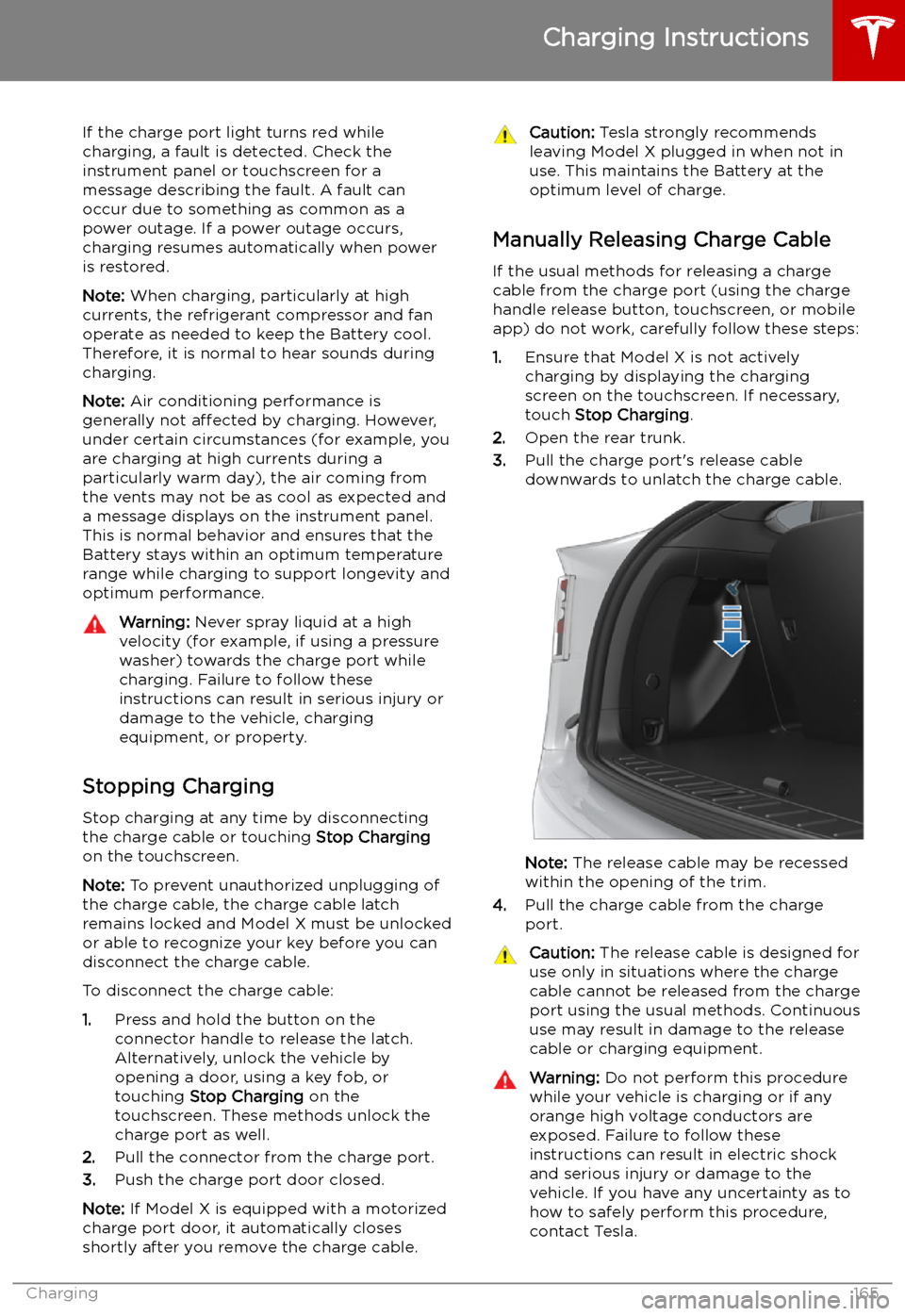
app) do not work, carefully follow these steps:
1. Ensure that Model X is not actively
charging by displaying the charging
screen on the touchscreen. If necessary,
touch Stop Charging .
2. Open the rear trunk.
3. Pull the charge port
Page 206 of 224

Disable the Self-Leveling AirSuspension System
If Model X is equipped with the air suspension
system, it automatically self-levels, even when
power is off. To prevent damage, you must
activate Jack Mode to disable self-leveling:
1. Touch Controls > Suspension on the
touchscreen.
2. Press the brake pedal, then touch Very
High to maximize height.
3. Touch Jack.When Jack Mode is active, Model X
displays this red indicator light on
the instrument panel, along with a
message telling you that active
suspension is disabled.
Note: Jack Mode cancels when driving speed
exceeds 7 kph.
Warning: Failure to activate Jack Mode on
a vehicle equipped with the air
suspension system can result in the
vehicle becoming loose during transport,
which may cause significant damage.
Activate Transport Mode
Transport Mode keeps the parking brake
disengaged while winching Model X onto a
Page 212 of 224

Reporting Safety Defects
Contacting Tesla For detailed information about your Model X,
go to www.tesla.com , and log on to your Tesla
Account, or sign up to get an account.
If you have any questions or concerns about
your Model X, call Tesla. To find the number
for your region, go to www.tesla.com, select
your region at the bottom of the page, then
view contact information.
Note: You can also use voice commands to
provide feedback to Tesla. Say "Note",
"Report", "Bug note", or "Bug report" (in the
English language) followed by brief comments
in your language of choice. Model X takes a
snapshot of its systems, including your current
location, vehicle diagnostic data, and screen
captures of the touchscreen and instrument
panel. Tesla periodically reviews these notes and uses them to continue improving Model X.
Reporting Safety Defects
Consumer Information211